
Toolbar & session status

| CONTROL | PURPOSE |
|---|---|
| Log | Review hunting history. |
| Settings · Z | Open configuration. |
| Play / Stop | Control the session. |
| Stage / timer | Monitor session progress. |
Hunting settings
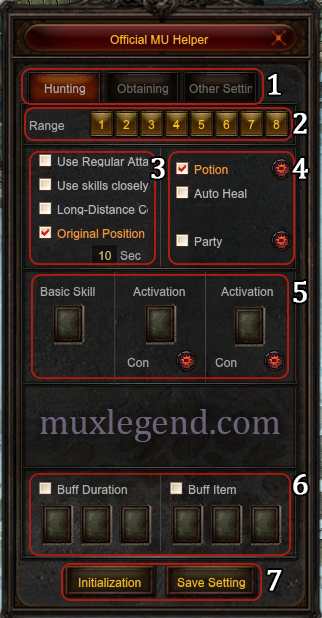
| NUMBER / CONTROL | SETUP |
|---|---|
| 1 · Tabs | Select a tab. |
| 2 · Range | Choose combat radius. |
| 3 · Attack | Set targeting and return. |
| 4 · Recovery | Set recovery and support. |
| 5 · Skills | Choose attacks and conditions. |
| 6 · Buffs | Set buffs and items. |
| 7 · Save / reset | Save or reset settings. |
Obtaining settings
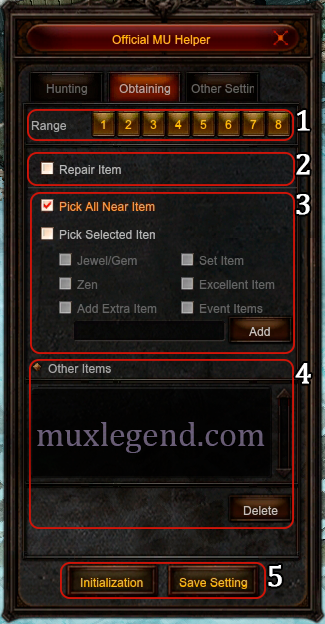
| NUMBER / CONTROL | SETUP |
|---|---|
| 1 · Range | Limit pickup radius. |
| 2 · Repair | Automate equipment repair. |
| 3 · Categories | Select loot categories. |
| 4 · Extra items | Add or remove names. |
| 5 · Save / reset | Save your pickup choices. |
Other settings
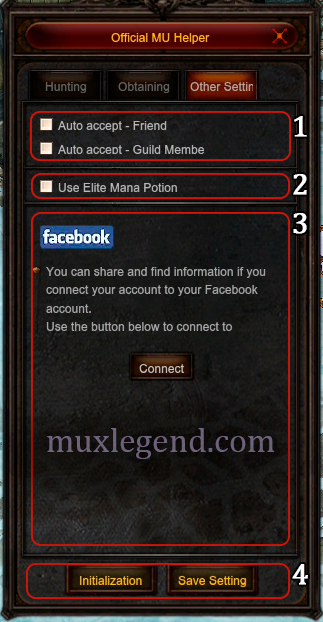
| NUMBER / CONTROL | SETUP |
|---|---|
| 1 · Auto accept | Accept friends or guild applications. |
| 2 · Mana potion | Choose alternate mana potions. |
| 3 · Facebook | Legacy social control. |
| 4 · Save / reset | Save or reset settings. |
Activation conditions & recovery
Use the Con controls beside an activation skill to inspect its trigger. The current client offers time and monster conditions; your learned skills and class determine which recovery and support options are usable.
| CHECK | WHAT TO KNOW |
|---|---|
| Basic skill | Register the learned attack you intend to use repeatedly. |
| Time Space | Choose the delay for an activation skill in the condition dialog. |
| Monster condition | Select monsters within hunting range or monsters attacking your character. |
| Sub-con | Select the required nearby-monster count shown in the dialog. |
| Combo | Register its basic and activation skills first. The client's Combo mode can disable separate delay and condition menus. |
| Party support | Review the party-health threshold and heal or buff support available to your class. |
When the Helper will not start
Read the message displayed by MU WAR. Eligibility, permitted regions, Zen deductions and time limits depend on the active realm settings. The older article's fixed figures should be checked against the current game window.
| CHECK | WHAT TO KNOW |
|---|---|
| Skill registration | Assign an eligible learned attack before starting. |
| Open windows | Close Skill Imprint or the Play Guide if the client asks you to. |
| Location | Use a permitted hunting field and follow the region restriction message. |
| Resources | Inspect the current Zen charge and keep potions available. |
| Session ended | Check the death, resource or elapsed-time message before restarting. |
Prepare for the journey
Check off what you have ready before entering, crafting or changing your build.
Step by step
- 01
Stand in a safe place and open MU Helper with Z. Inspect the three settings tabs using the numbered pictures above.
- 02
Register your attack and set its range. Use the activation-skill condition dialogs only after confirming you have the required learned skills.
- 03
Configure recovery and the pickup list, using item names as shown by your current client. Save the configuration before leaving the window.
- 04
Move to a permitted hunting field and use the Helper Start control. Watch a short run and check recovery, target selection and collected items.
- 05
Stop and adjust one setting at a time if the character cannot sustain the spot. Recheck the setup after changing skills, equipment or maps.
What makes the difference
The screenshots are the original MUX Legend illustrations from 2018. Current Season 21 menus can have additional controls or a different arrangement.
Use the Helper Start/Stop button when a shortcut differs from an older list. The keyboard reference explains Z, the newer ground-click controls and legacy Home behavior.
Initialization resets the configuration. Choose Save Setting after editing the options you want to retain.
The current client decides the extra-item list capacity and any operating fee. Test specific item names with a short hunt before leaving the setup running.
Sources & realm rules
Original numbered screenshots: Arthur, MUX Legend Community (2018). MU WAR's text is independently written using client controls and WEBZEN references. Follow the active game messages for eligibility, charges and limits.